📚 Tutorials
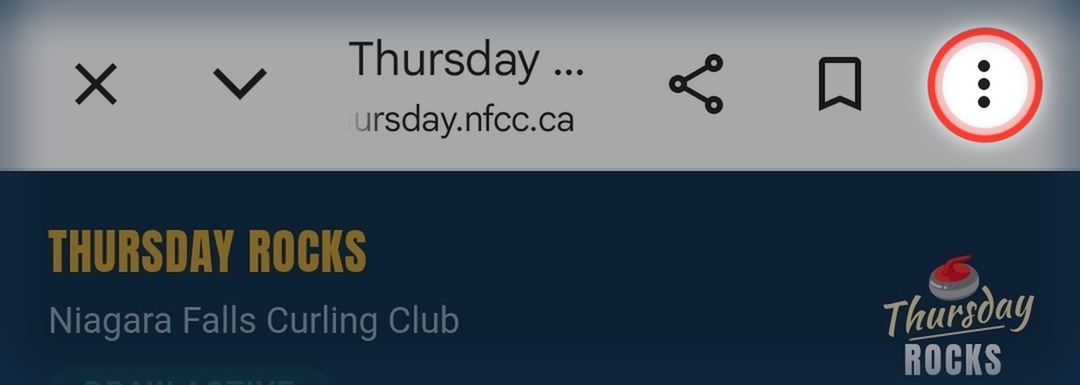
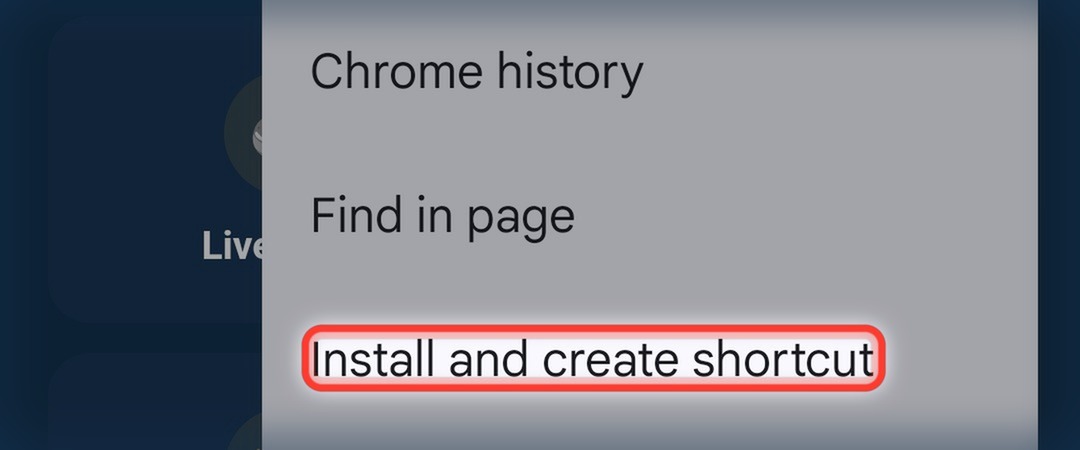
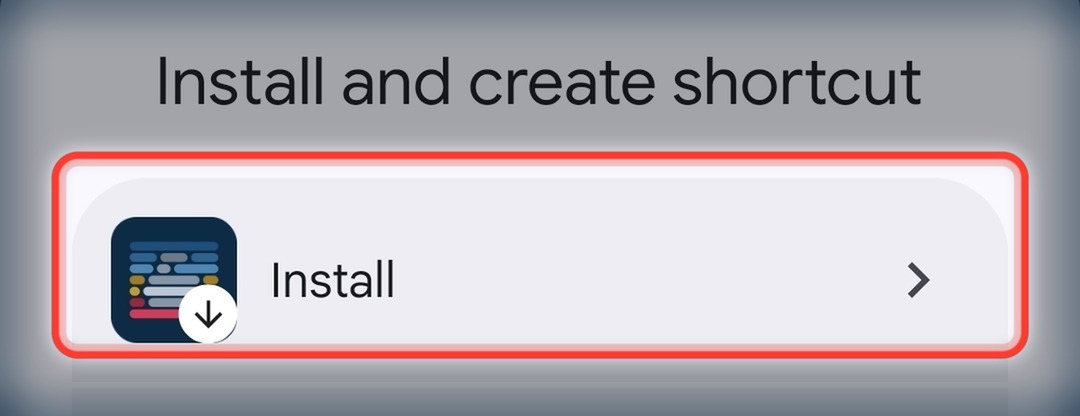
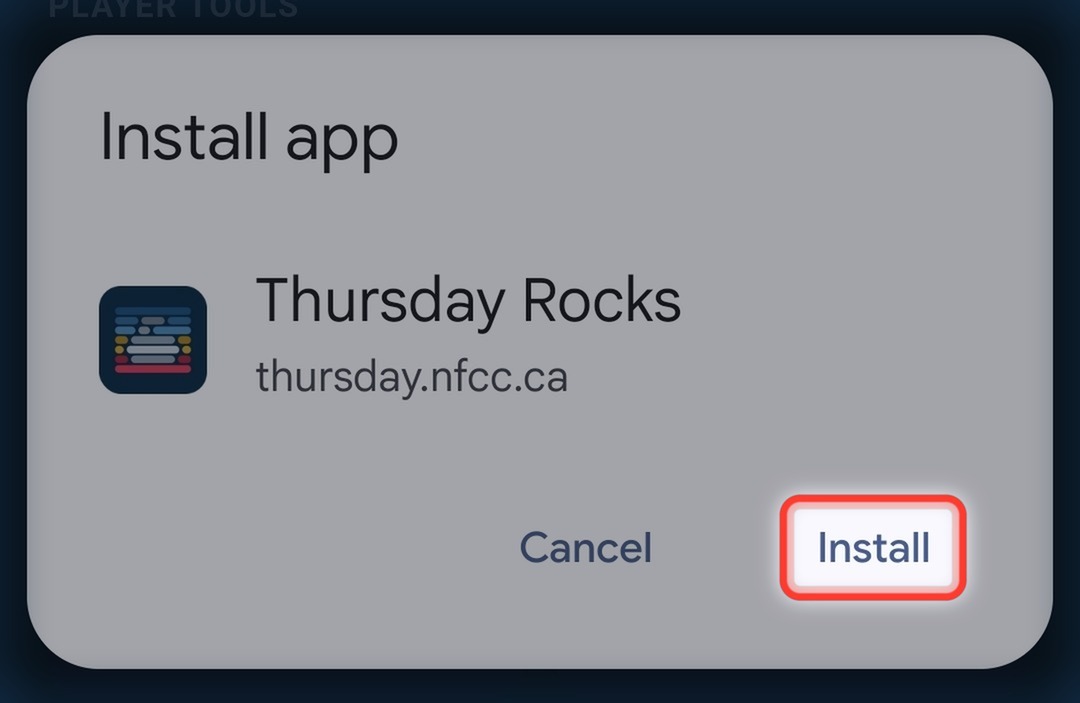
Install as an App
Add Thursday Rocks to your home screen so it opens like a real app — no browser bar, one tap to launch.
▾
▾ Tap to view the steps
-
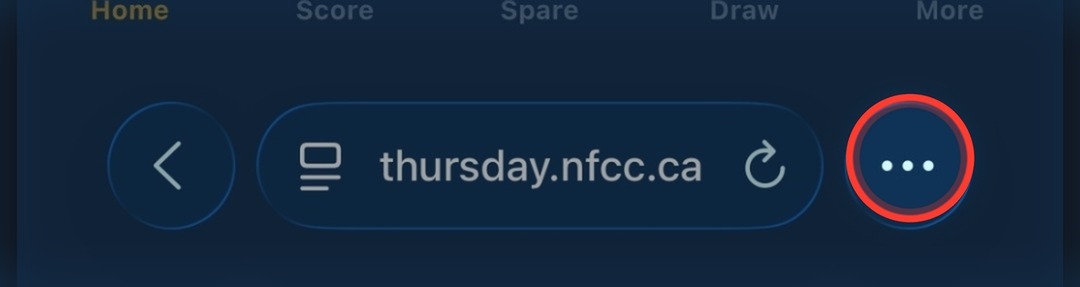
In Safari, tap the ••• button in the address bar.
-
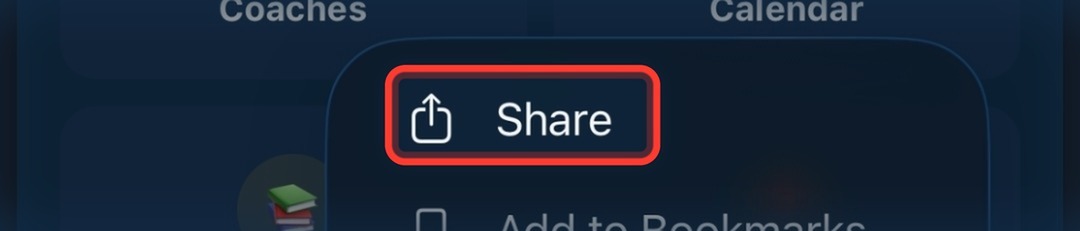
Tap Share.
-
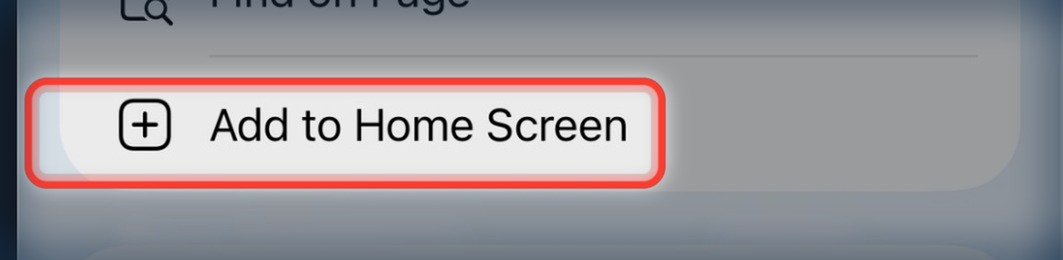
Scroll down the share sheet and tap Add to Home Screen.
-
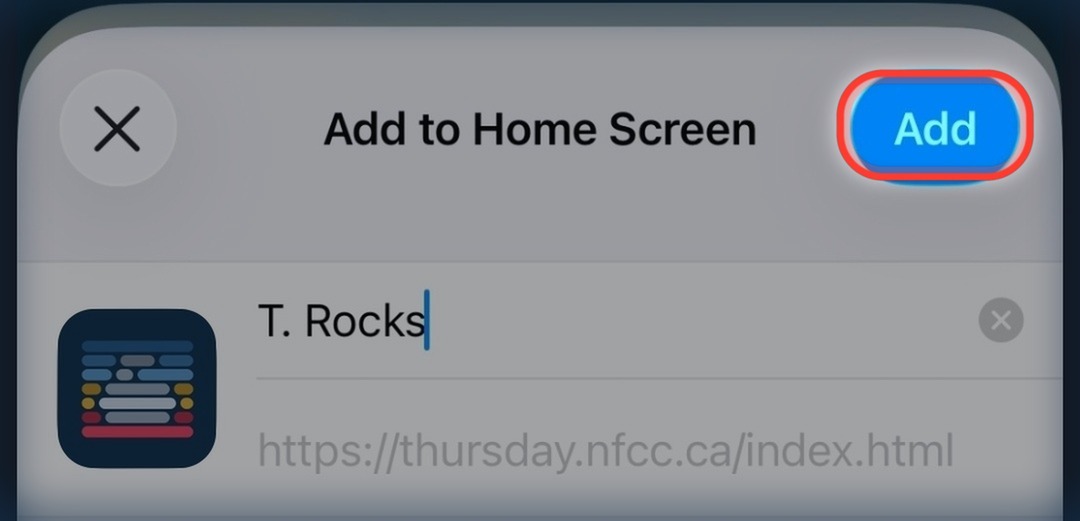
Tap Add in the top corner.
-
Done! The T. Rocks icon is now on your home screen.


Submitting a Score
Submit your team's score right after your game — takes under a minute.
▾
▾ Tap to view the steps
-
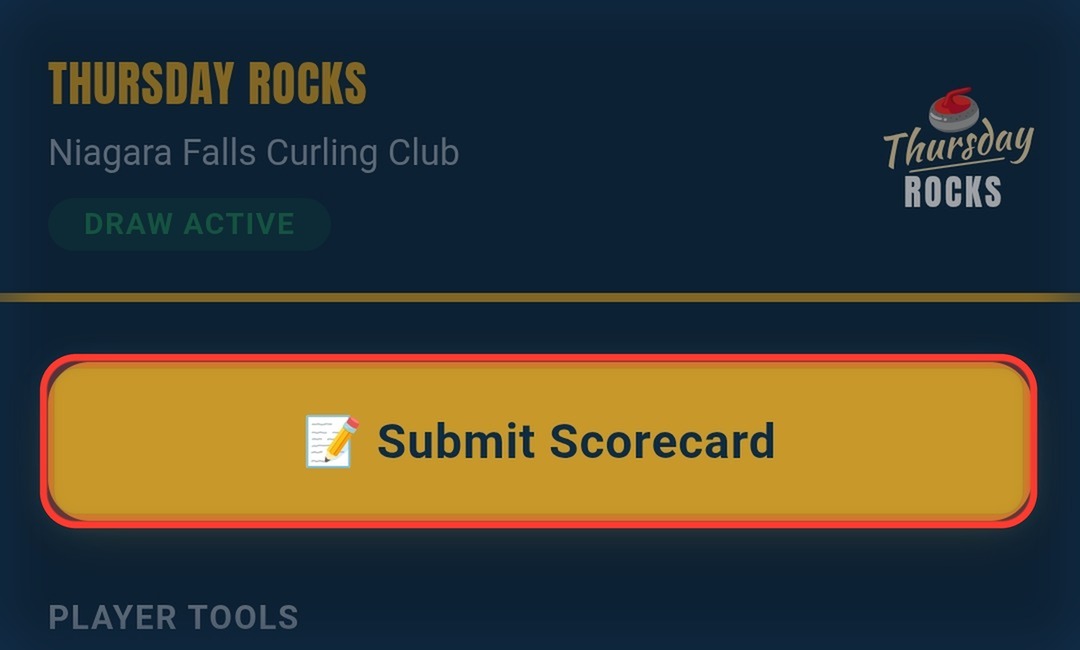
From the home screen, tap Submit Scorecard.
-
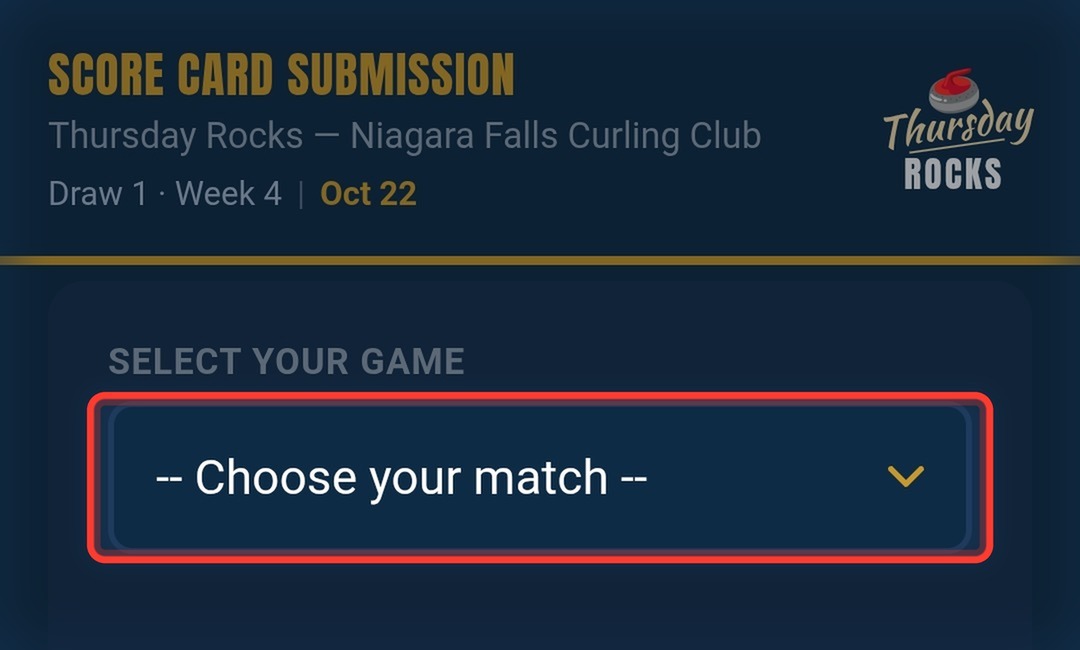
Tap the game dropdown.
-
Fill in the rest of the scorecard:
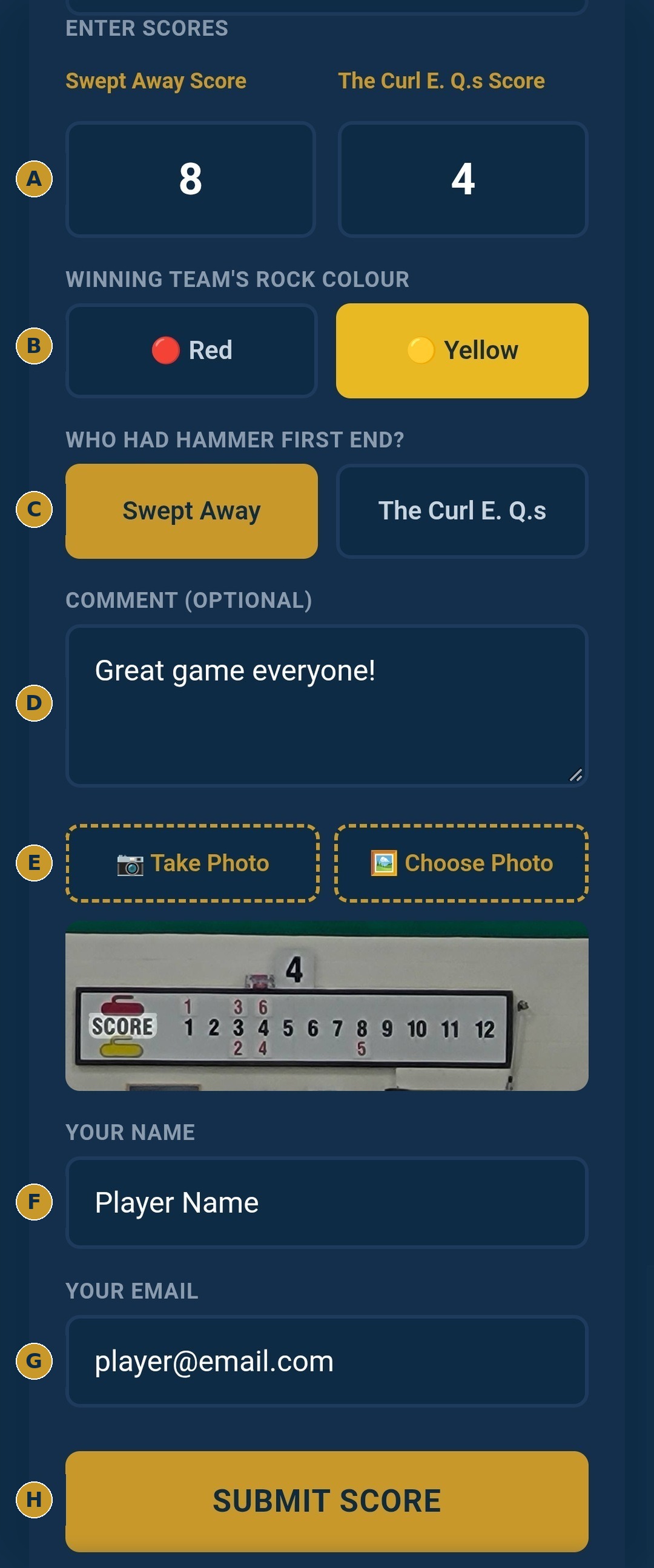
- AEnter both teams' scores
- BTap the winning team's rock colour
- CTap who had hammer first end
- DAdd a comment (optional)
- ETake a photo of the scoreboard, or choose one from your camera roll
- FConfirm your name
- GConfirm your email
- HTap Submit Score
Requesting a Spare
Short a player? Post a vacancy and we'll broadcast it to available spares.
▾
▾ Tap to view the steps
-
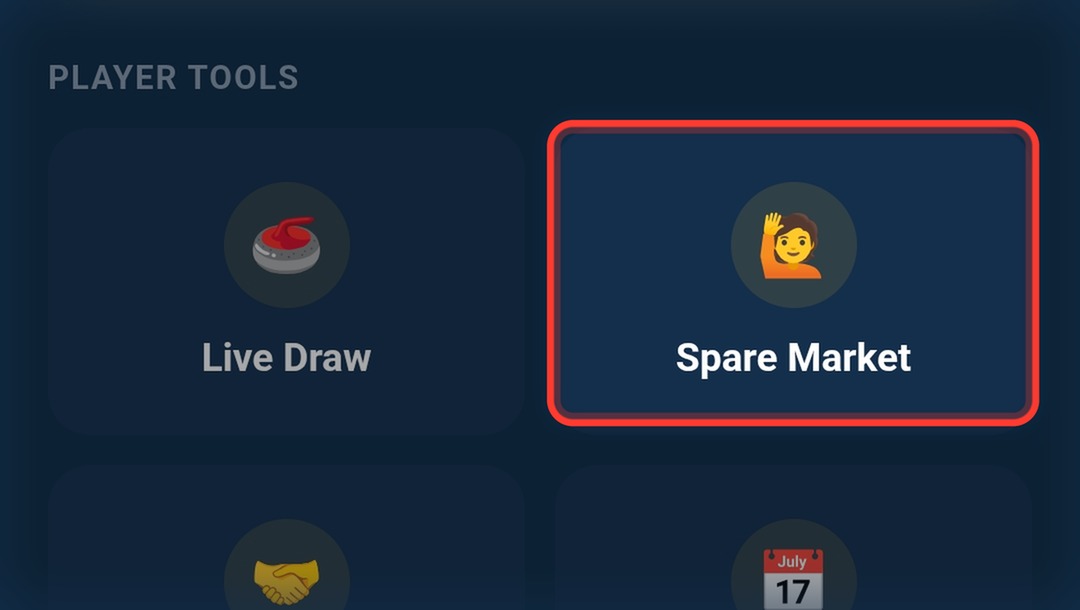
From the home screen, tap Spare Market.
-
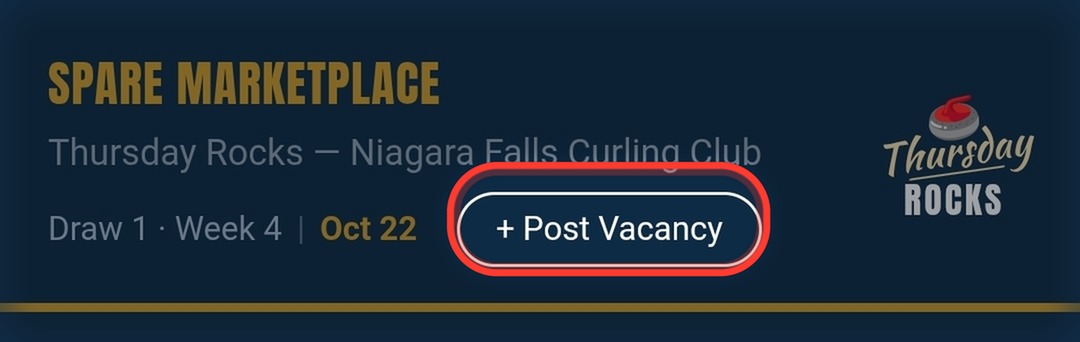
Tap + Post Vacancy.
-
Fill in the rest of the form:
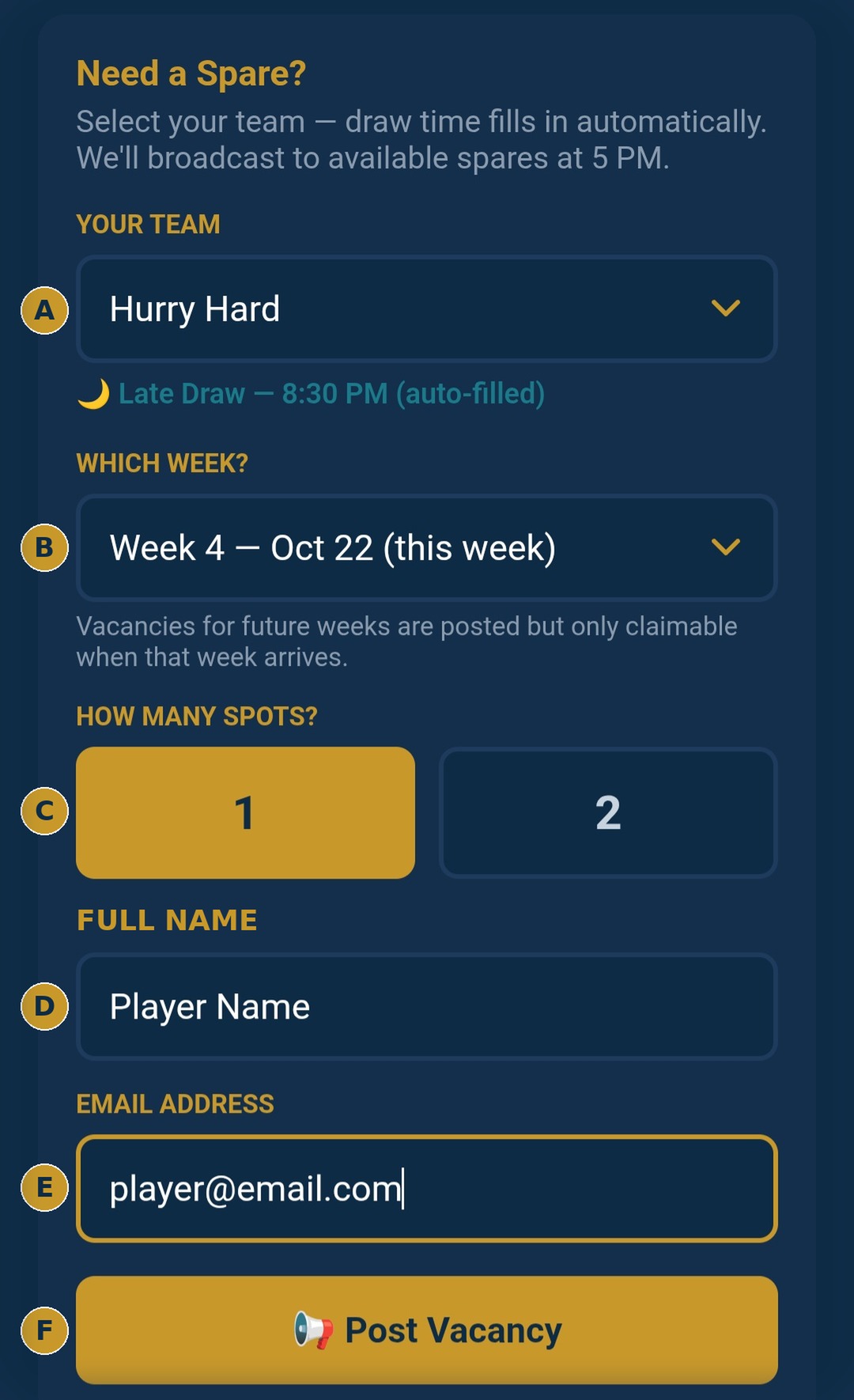
- AConfirm your team (draw time fills in automatically)
- BConfirm which week (defaults to this week)
- CTap how many spots you need
- DConfirm your full name
- EConfirm your email address
- FTap Post Vacancy
Claiming a Spare
Free tonight? Step up for a team that's short a player, right from the Spare Market.
▾
▾ Tap to view the steps
-
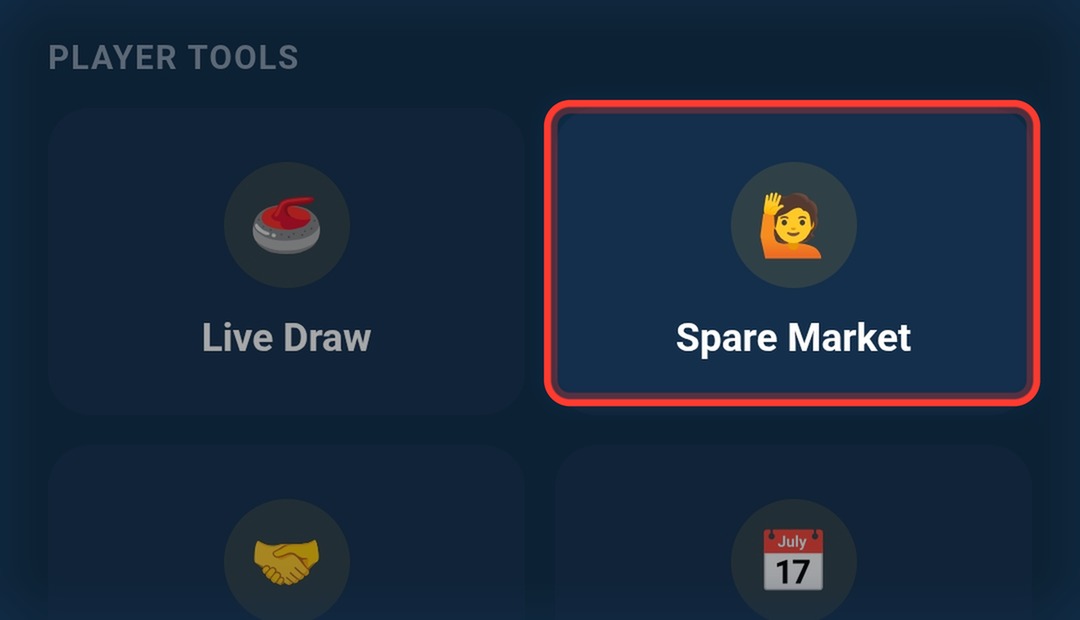
From the home screen, tap Spare Market.
-
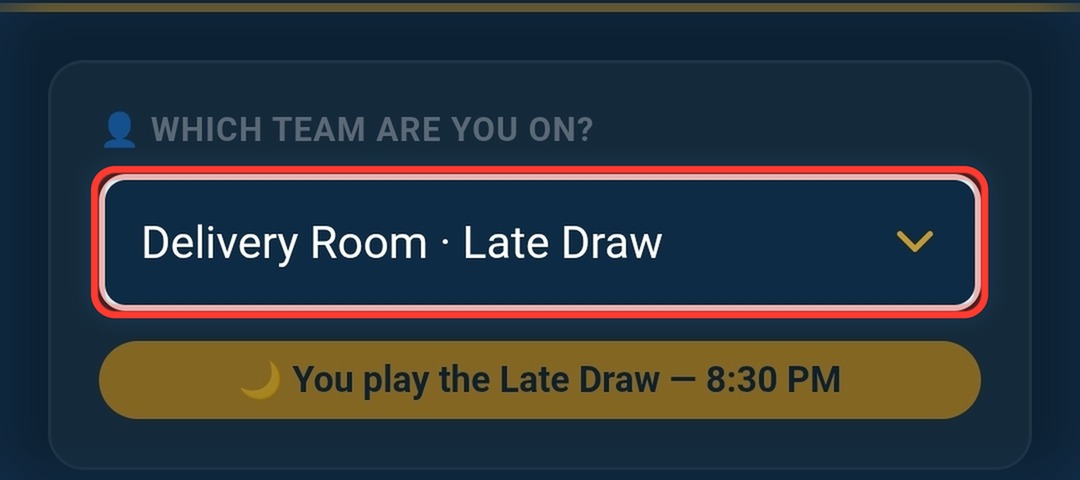
Select your team so the system knows which games you can't spare for.
-
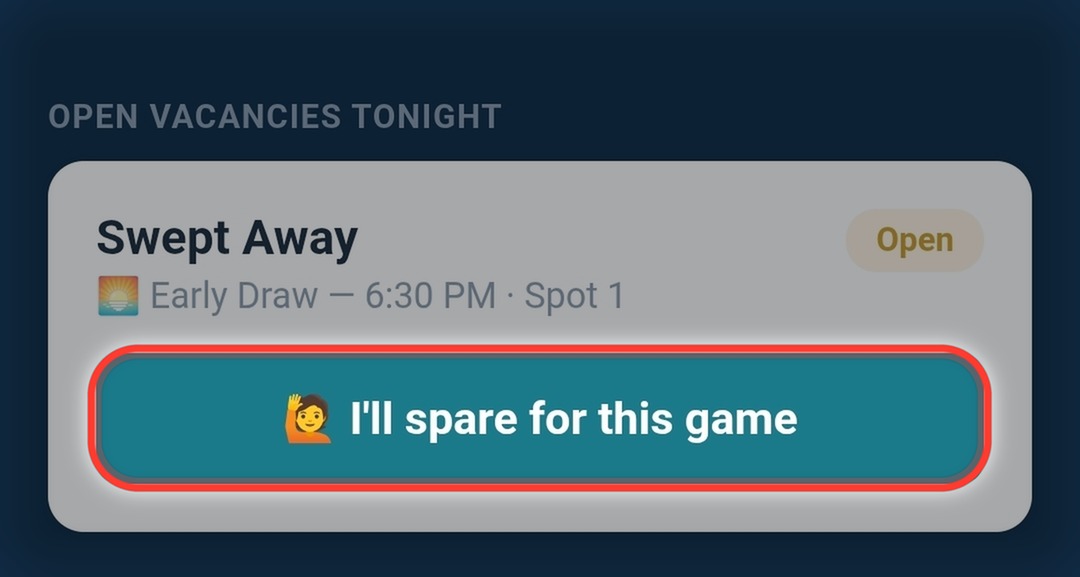
Find a vacancy you can cover and tap I'll spare for this game.
-
Fill in the rest of the form:
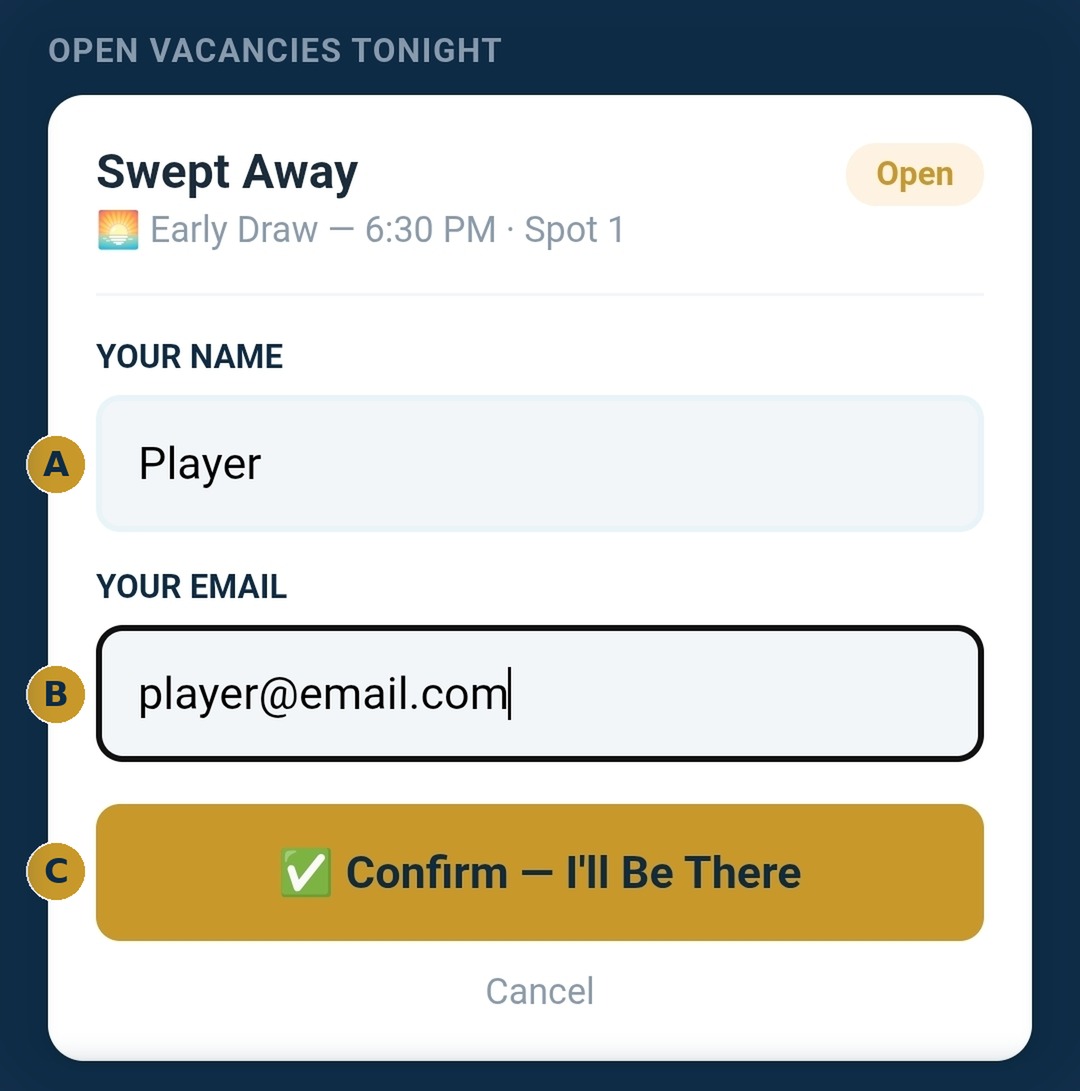
- AConfirm your full name
- BConfirm your email address
- CTap Confirm — I'll Be There
-
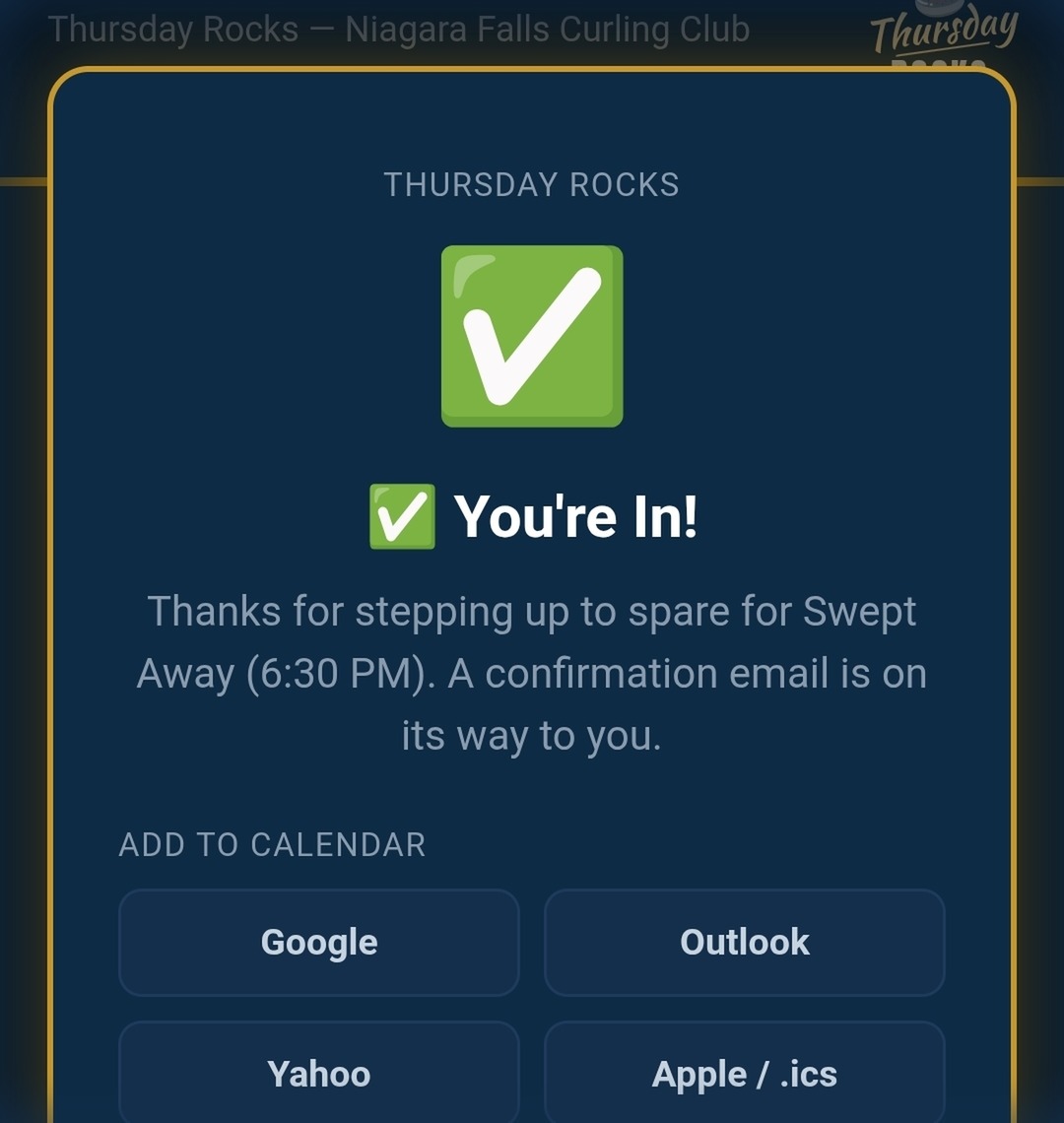
You're in! Add the game to your calendar right from this screen — you'll also get a confirmation email with the same details.
Signing Up to Coach
Commit to coaching one night or several — pick your draws and we'll remind you the day of.
▾

▾ Tap to view the steps
-
From the home screen, tap Coaches.
-
To commit to just one night, stay on the 1 Week tab:

- A1 Week is selected by default
- BConfirm which week
- CTap Sign Up to Coach on the draw you want — early, late, or both
-
To commit to several nights at once instead, switch to Multiple Weeks:

- ATap Multiple Weeks
- BChoose which draw(s) you can help with — Early, Late, or Both
- CCheck off every night you can commit to
-
Then finish up:

- AConfirm your name
- BConfirm your email
- CLeave checked for a reminder email the afternoon of each night you're coaching — or uncheck to skip it
- DTap Confirm Sign-Up